Before you start
Getting started · 3 min read · Updated 29 May 2026
You'll need a Karmo workspace and at least one project. If you haven't created a workspace yet, start free — it takes under a minute. Anyone with the Manager project role can create and configure boards.
Tip: Most teams start with a single board per project, then add focused boards (like a triage or bug board) as they grow.
1 · Create a board
Open your project and select Board in the sidebar. New projects come with a default board, so often it's already waiting for you. To add another, use All boards → New board.
Open the board
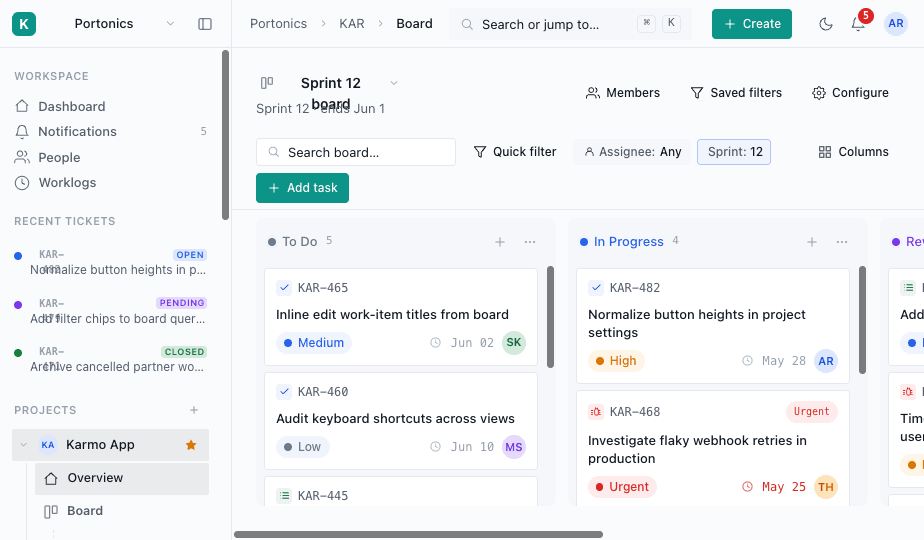
From the project sidebar, click Board. You'll land on your active sprint or backlog view.
2 · Shape your columns
Columns map to your workflow — the default is To Do → In Progress → Review → Done. Use Configure in the top right to rename, reorder, add, or remove columns, and to set work-in-progress limits.
Match columns to how you work
Keep it simple to start. You can always split a column later as your process matures — history and filters adapt automatically.
Tip: A WIP limit on "In Progress" is the single fastest way to stop work piling up.
3 · Add work items
Click Add task at the top of the board, or the + on any column. Give it a title and you're done — everything else (assignee, priority, due date, subtasks, custom fields) can be filled in from the work item's detail view.
Open an item to add detail
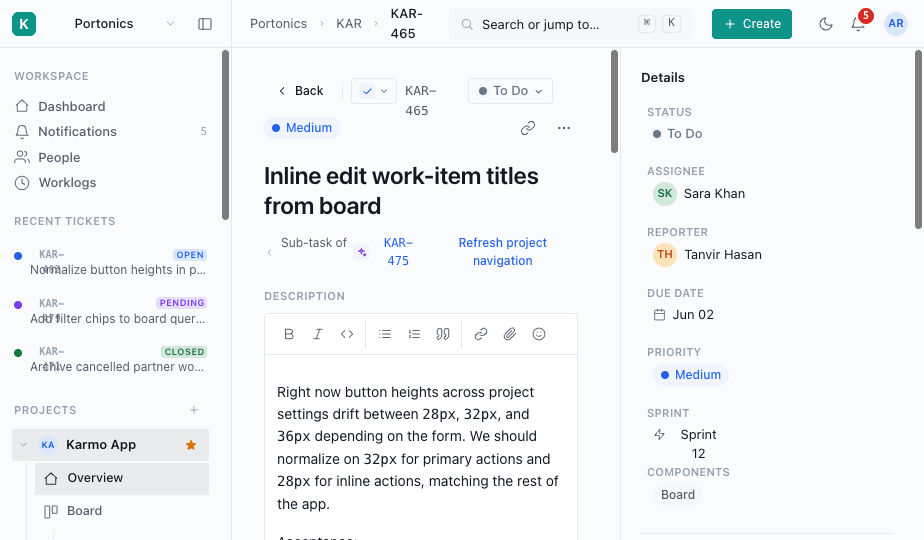
Click any card to open its full detail view: description, subtasks, linked items, comments, and a complete activity history.
4 · Filter & save views
Use Quick filter and the assignee / sprint controls to narrow the board to exactly what you need — then save that combination as a view your team can reuse. Saved views live under Saved filters.
Save the views your team uses daily
"My open items", "This sprint, high priority", or "Client-facing only" are great starting points.
Next steps
That's the core loop. From here, most teams set up time tracking and bring clients into the project:
Was this article helpful?